
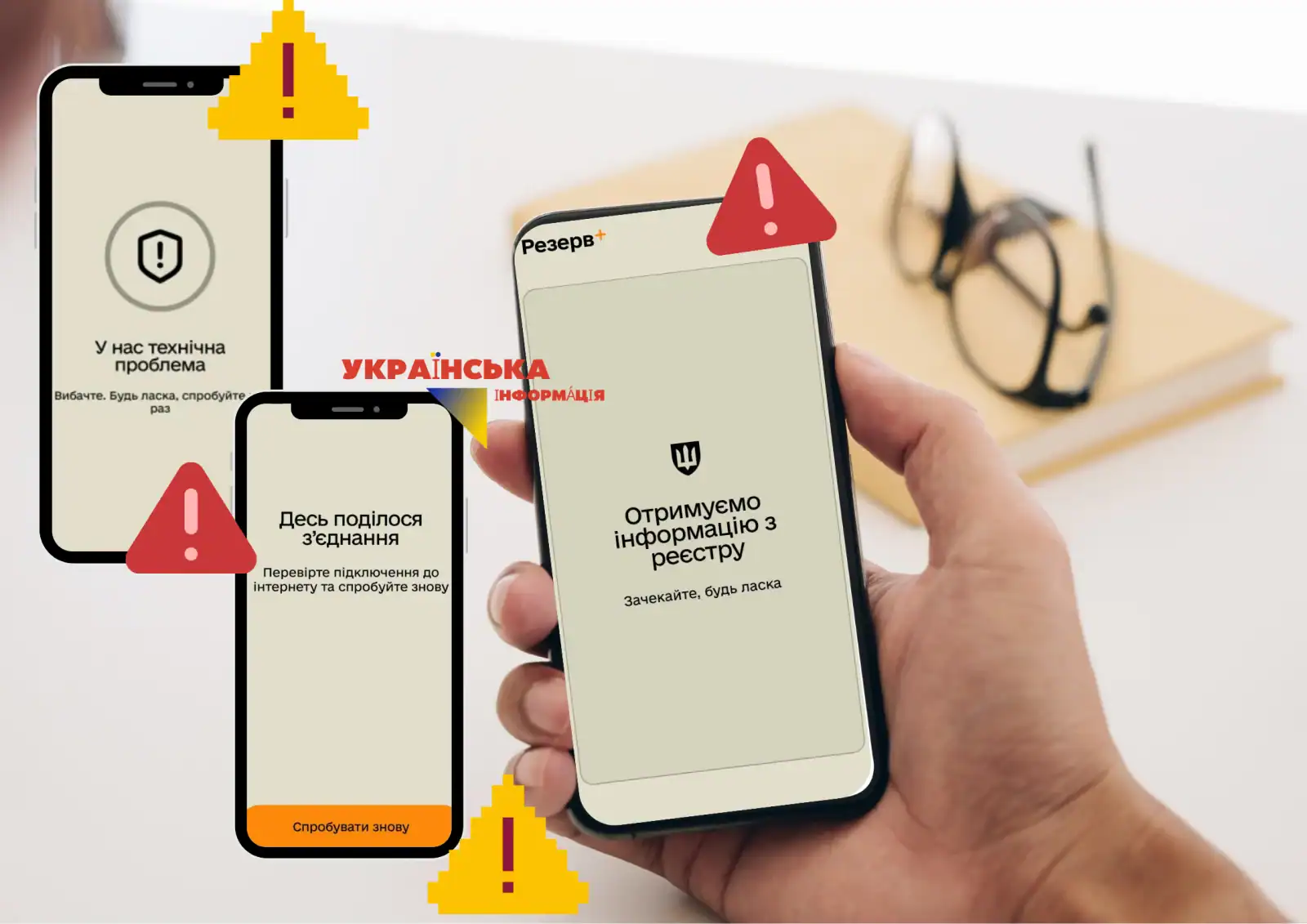
Have you encountered the situation “Reserve+ does not log in”, “gives an error”, “code does not come”, “status disappeared” and are you looking for a solution? We can reassure you, because you are not alone, thousands of Ukrainians are constantly looking for and asking military lawyers about this every day. If you also encountered a problem in the operation of the Reserve+ application that pulls data from the Oberig registry , do not rush to panic and push everything to the CCC and SP. In most cases, the problem can be solved independently in 5–15 minutes. This article contains the most detailed and up-to-date step-by-step guide on what to do when Reserve+ does not work in 2026.
Why “Reserve+” doesn’t work for dads in 2026
The “Reserve+” application, since its creation in late 2023 and data updates in 2024, has become the main tool for military registration, data updates, obtaining an electronic military ticket, checking and paying fines for violating military registration rules, and removing
the “wanted” (red tape in reserve+).
However, due to the heavy load, technical updates, and constant changes in the system, many users encounter problems: the application does not load, freezes, the SMS code for data transfer consent from the bank or Diya does not arrive, or it simply gives an error asking to contact technical support, which cannot do anything.
The most common problems with the Reserve+ app and why they occur
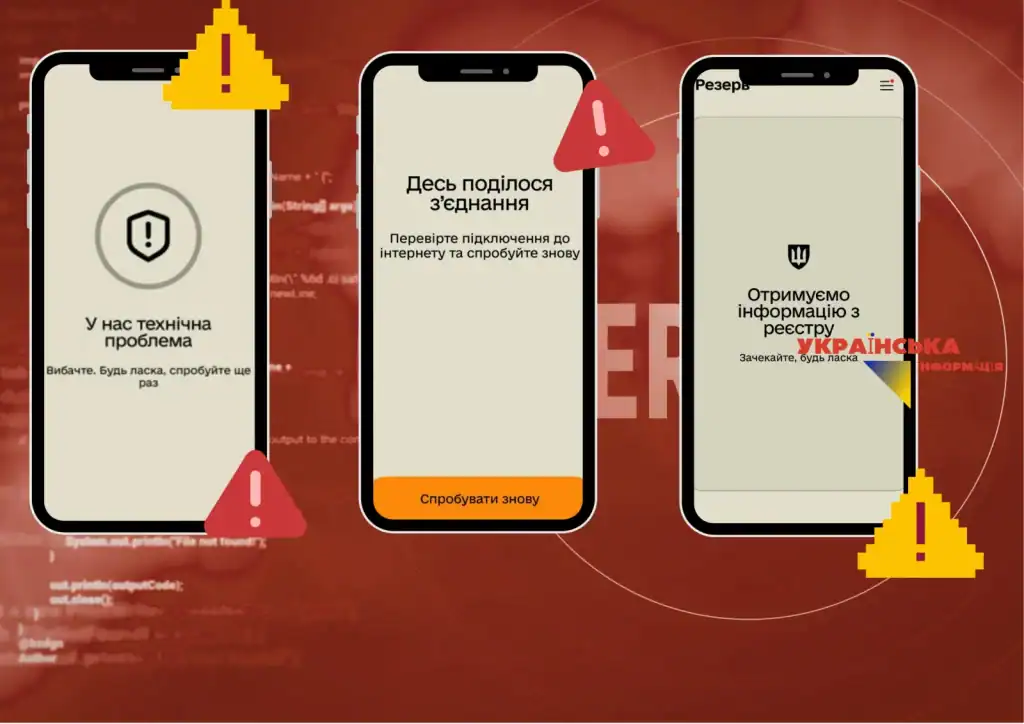
The most common complaints from users who were unable to log in to Resera+ in 2026 are:
The application does not load or hangs on the loading screen – this is a problem with your mobile device, especially common if it is downloaded to a tablet. To solve the problem, you should update the firmware of your phone, or download the latest update to your phone. Also, make sure that your phone has enough RAM to install the application. You need about 200 megabytes of free RAM, and it is better to have all 500 mb with a margin.
SMS confirmation code not received – When you cannot authorize through Action or Bank by electronic signature because you do not receive a notification about “consent to processing”, then you need to contact your bank’s support or Action to set up consent to access and transfer data for the Reserve+ application.
After logging in, it gives an error or “something went wrong” – most likely there is a problem with the Reserve+ server itself, that is, technical work is ongoing on the server or the service is being updated, just try logging in later or on another day. Officially, the Ministry of Defense notifies in advance about updates and failures in the application.
The deferral or reservation status has disappeared – there can be no miracle here, this is not a bug or just a server freeze, this is specifically the action of your company to intentionally remove your reservation from you to give it to another employee, or your deferral has expired or was not automatically extended due to lack of grounds.
Needs updating (your data that you see is not up-to-date, to change the status to “out-of-date” you need to “update the document”) – just go to the additional menu “+” in the Reserve+ application and click “update document”
Authorization error via Action.Signature or BankID – There may be several reasons for this, firstly, your electronic key is invalid or outdated. Secondly, you have a missing or incorrect one in the RNOKPP register (or it is also called TIN), which makes it impossible to retrieve data by tax number (taxpayer code of an individual).
What to do if Reserve+ does not work (does not load, gives an error)
Step-by-step algorithm:
- Check your internet connection . Try connecting to a different network (Wi-Fi → mobile internet or vice versa).
- Update the app to the latest version, or uninstall and reinstall. Go to Google Play or the App Store and check for updates for “Reserve+”.
- Clear the phone’s cache and data. Phone settings → Applications → Backup+ → Storage → Clear cache and/or Clear data.
- Restart your phone . A simple restart often resolves temporary glitches (lags in the phone’s processor memory).
- Try logging in from another device. If you have another smartphone or tablet, try logging in from it after passing identification.
What to do if Reserve+ freezes or doesn’t update
- Close the application completely and launch it again.
- Check if there is free space on your phone (a minimum of 500 MB to 1 GB is required).
- Update your phone’s operating system to the latest version.
- Turn off VPN or connect to a different network if it is on.
What to do if the confirmation code does not arrive (SMS does not arrive)
This is one of the most common problems.
Decision:
- Check whether the phone ID number is specified correctly in the Diya profile and whether the login is from the same device on which your “Diya” is connected.
- Wait 2–3 minutes (sometimes the SMS confirmation of consent to data processing and transfer comes with a delay).
- Write to the bank operator’s support, if you log in through the bank, section: “Technical support” further – “Message for the operator”.
- If the SMS does not arrive for more than 10 minutes, try to authorize via Action.Signature (electronic signature).
What to do if the status or deferral has disappeared in Reserve+
- Go to the “My Data” section and click the “Update Data” button.
- Check that all documents are up-to-date (expiration date of passport, military registration document, etc.).
- If the status disappeared after updating, contact the CCC at the place of registration with the original documents.
How to download an electronic military document to Reserve+ if the application is not working
If the application completely refuses to work, there are three alternative methods:
- Through the ASC – contact the nearest administrative services center.
- Through the CCC – in person with a package of documents.
- Through the Diya portal (web version on a computer) – in the “documents and certificates” section, there is a function where an extract of the Military Registration Document can be obtained directly by electronic signature.
Common errors that cause Reserve+ to stop working
- Using an old version of the app
- Phone memory full
- VPN enabled during authorization
- Incorrect data entry Action.Signature
- Frequent uninstallation and reinstallation of the application
When to contact the CCC or military lawyers
- The application does not work for more than 3–4 days after all attempts to resolve it
- Important data (status, postponement) disappeared
- You suspect that your data may have been compromised
Read also: Injury payments in 2026: the procedure and what amount you can realistically receive today
Conclusion
The problem “Reserve+ not working” is a temporary technical issue that in most cases can be resolved on your own. The main thing is not to panic and act in stages.
Checklist of what you should do first right now if Reser+ is not working:
- Restart your phone
- Update the Reserve+ app
- Clear the app’s cache and data
- Try logging in through a different network.
- Check if you receive an SMS code
- If nothing helps, contact the ASC or CCC.
Save this article. If you have a problem with Reserve+, use the step-by-step guide. You will cope.
Subscribe to daily notifications about how to clear phone memory in Viber by clicking on this text!